Getting started
Expenity keeps your money, bills and goals in one place, on every device you use: iPhone, iPad, Android, Windows, Mac and Linux, with nothing to download from a store. This guide takes about five minutes, and every step after the account can be skipped.
1. Create an account (or sign in)#
Open the app at expenity.github.io/expenity/app/. The first screen asks you to create an account or sign in. You use a passkey, which is your fingerprint, face or device PIN, so there is no password to remember or lose. Type your email, press Create account, and your device asks you to confirm.
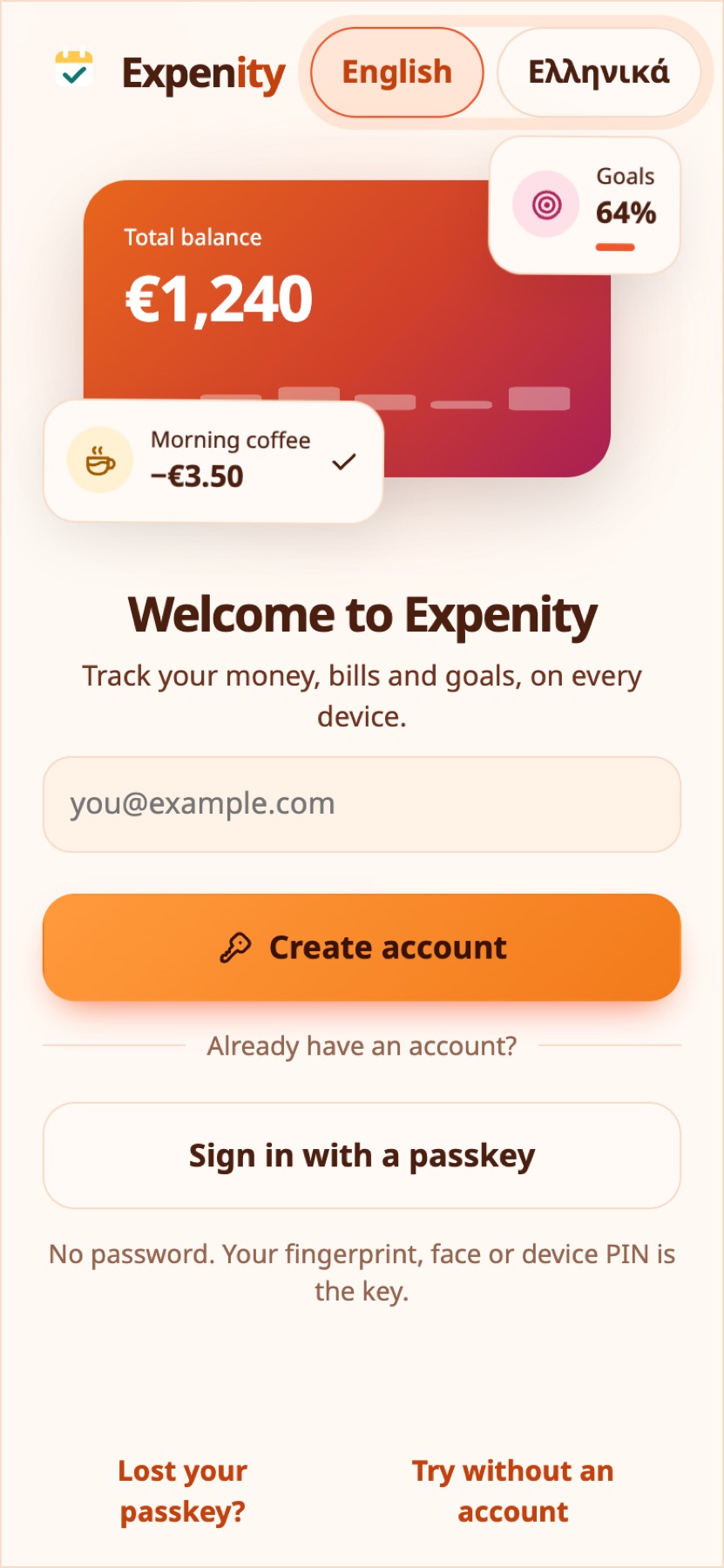
Expenity then shows ten recovery codes. Save them somewhere safe. They are how you get back in if you lose your passkeys, and they are shown only once. See Account and sync.
Not ready for an account? Press Try without an account. Your data then stays in this browser only, and you can create an account later from More.
2. Add Expenity to your home screen#
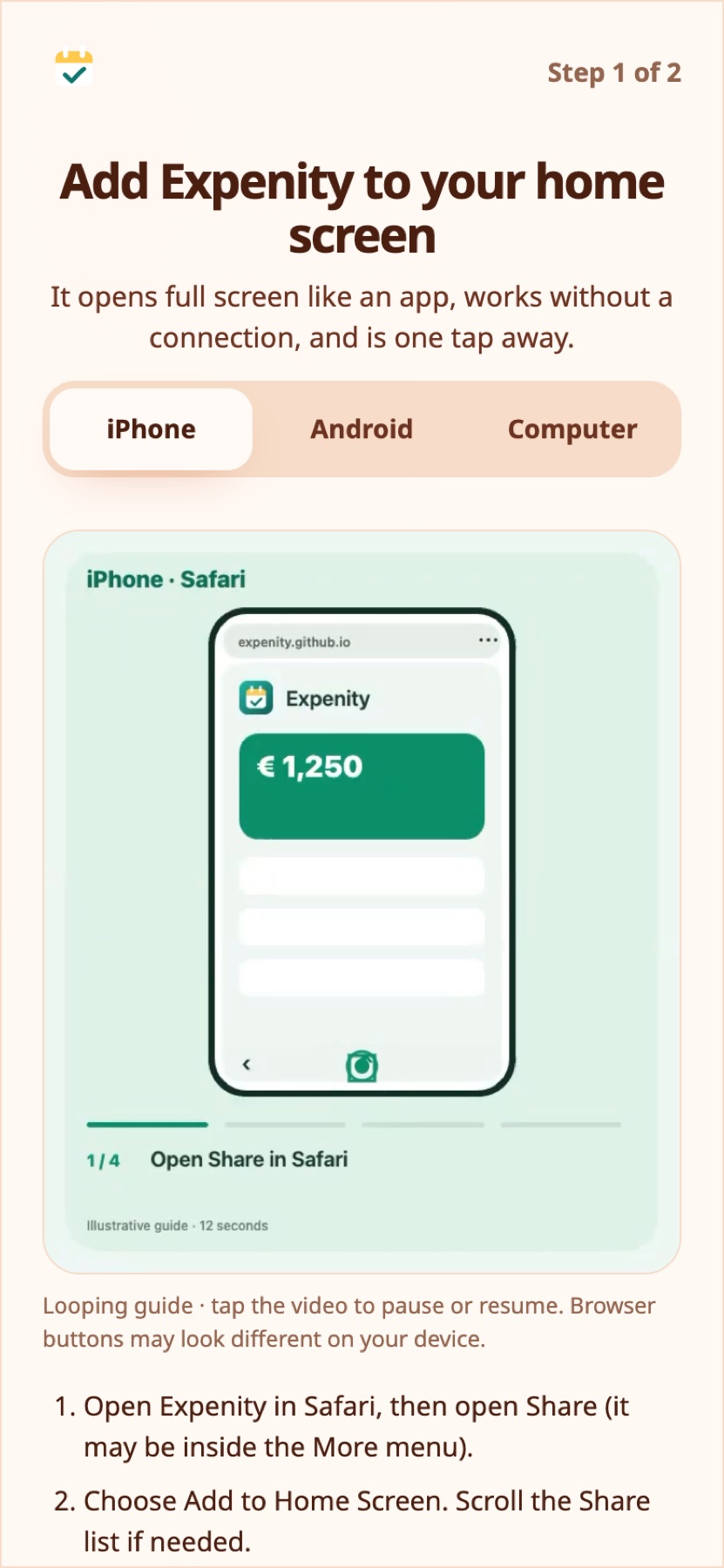
The next screen shows, with a short animation, how to add Expenity to your home screen on iPhone, Android or a computer, so it opens like an app. Choose your device, follow the four steps, then press I added it, or Skip for now. More in Install on your device.
3. Set it up#
A short setup asks a few questions. Each one can be skipped, and you can change every answer later.
- Your name, used in the greeting.
- Your main currency, starting with EUR. Totals and reports use it.
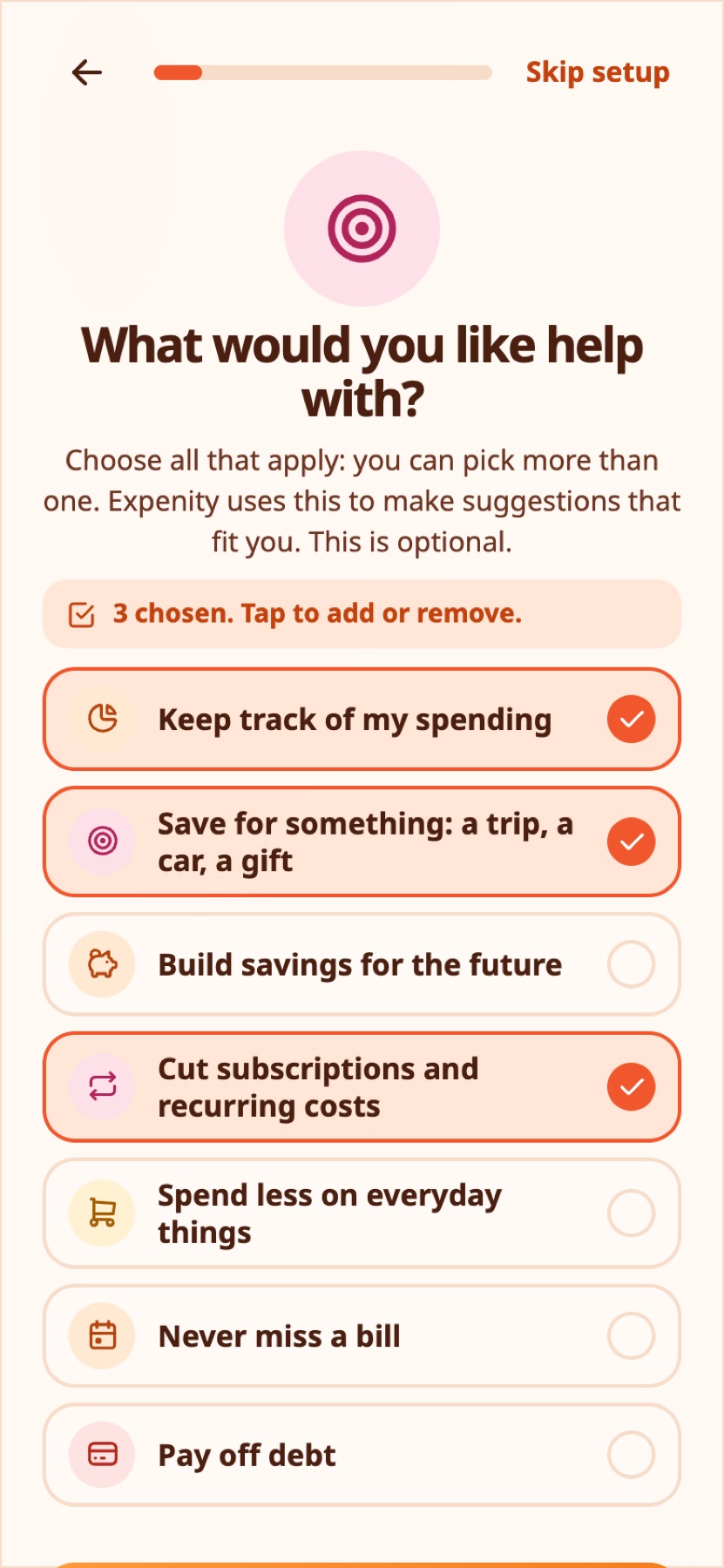
- What you want help with, such as tracking spending, saving for a trip, or cutting subscriptions. You can choose more than one, and one is already selected to show how. Expenity uses this to suggest things that fit you. See Budgets, goals and income.
- Your first goals, if you chose to save for something. Pick as many ideas as you like (trip, car, gift, home, emergency fund) or add your own, each with a target amount.
- Your wallets: cash, bank account, card, savings, with what is in each.
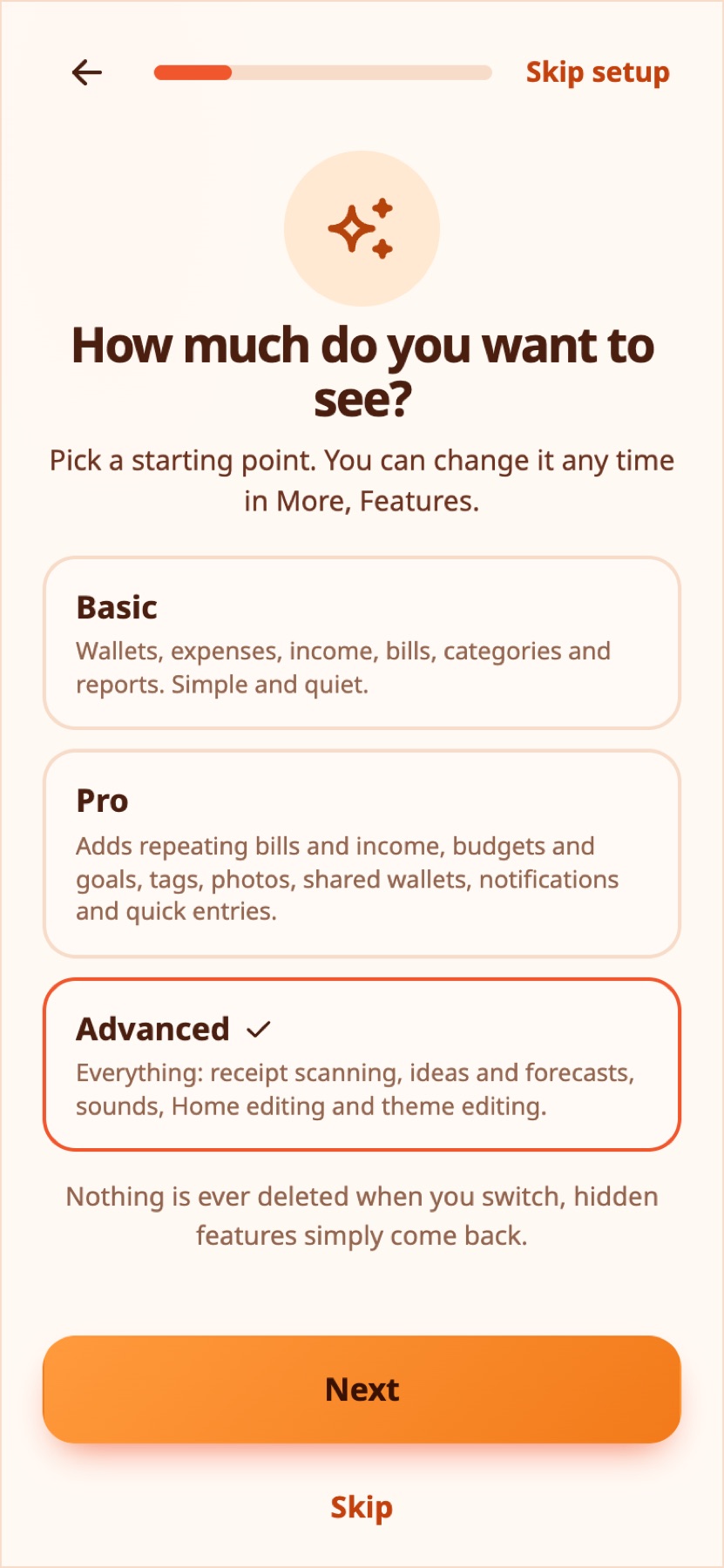
- How much you want to see: Basic, Pro or Advanced, or a plan of your own later. See Features and plans.
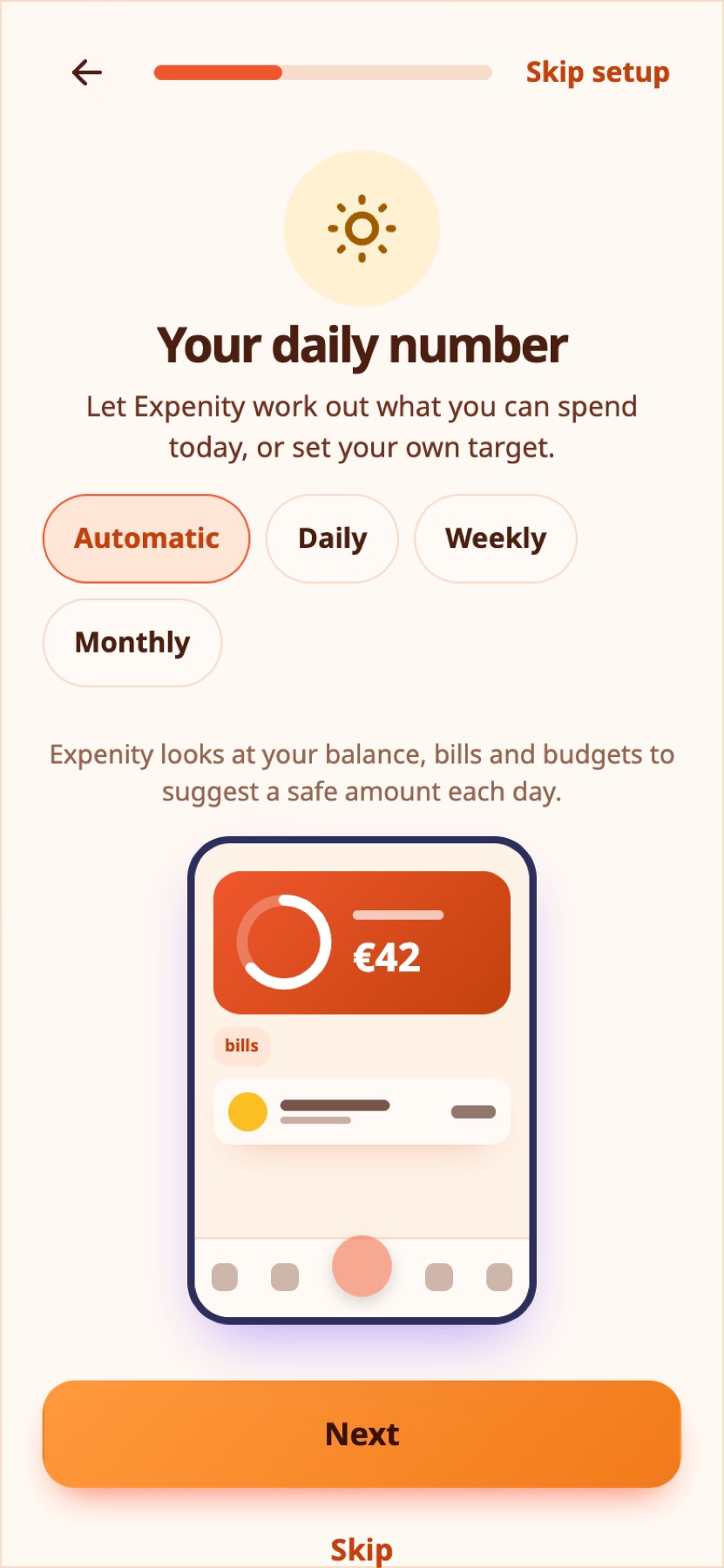
- Your daily number: let Expenity work out what you can spend today, or set a daily, weekly or monthly target. See Daily number, targets and streaks.
- How it looks: a theme and whether animations are on. See Themes and animations.
- Notifications: turn on the daily bill summary and update notices, even when Expenity is closed (with an account; Not now skips it). See Reminders.
- Short animated lessons: scanning a receipt, adding an entry in one sentence, a few handy extras, the help icon, and, on a phone, swiping rows. See Tutorials and help.
Until the setup is finished or skipped, the app does not let you add data, so nothing ends up in a wallet you did not choose.
Real-life example
Anna picks Basic to start quietly and sets a daily target of €15. Home now shows what she can still spend today.
4. Add your first expense#
Press the green + button, choose Expense, type the amount on the keypad, add a description, pick a category and a wallet, and press the check mark. More about adding money.
Find your way around#
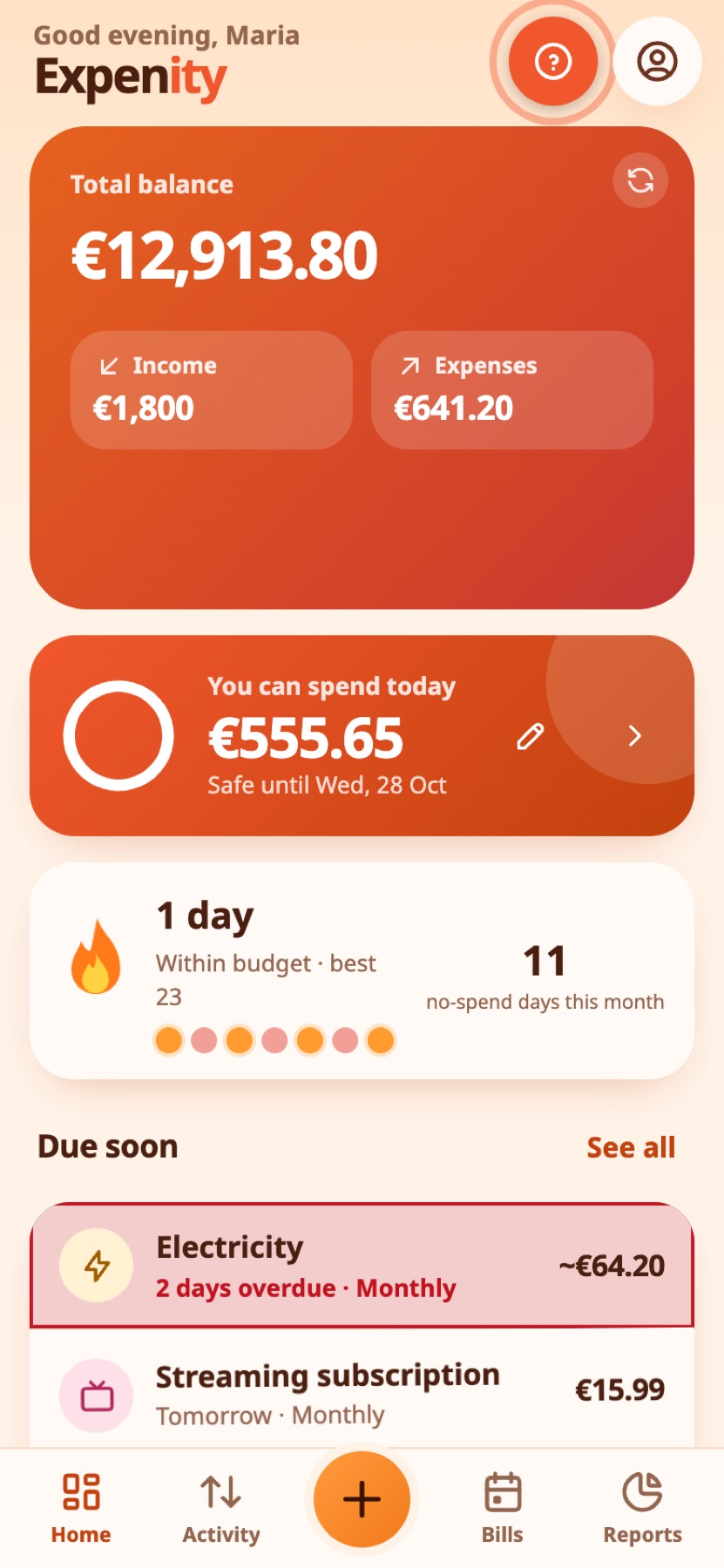
- Home: your total balance, income and expenses this month, ideas for you, wallets, what is due soon.
- Activity: every transaction, by month, with search and filters.
- Bills: what is coming, as a list or a calendar.
- Reports: charts and tables. See Reports.
- Budgets & goals: spending limits and savings targets, from Home, More or the sidebar.
- Activity → Income → Recurring income: salary and other regular income.
- Home → Ideas: suggestions and your aims.
- More: wallets, categories, reminders, backup, themes, your account.
Where to go next#
A quick tour, at your pace#
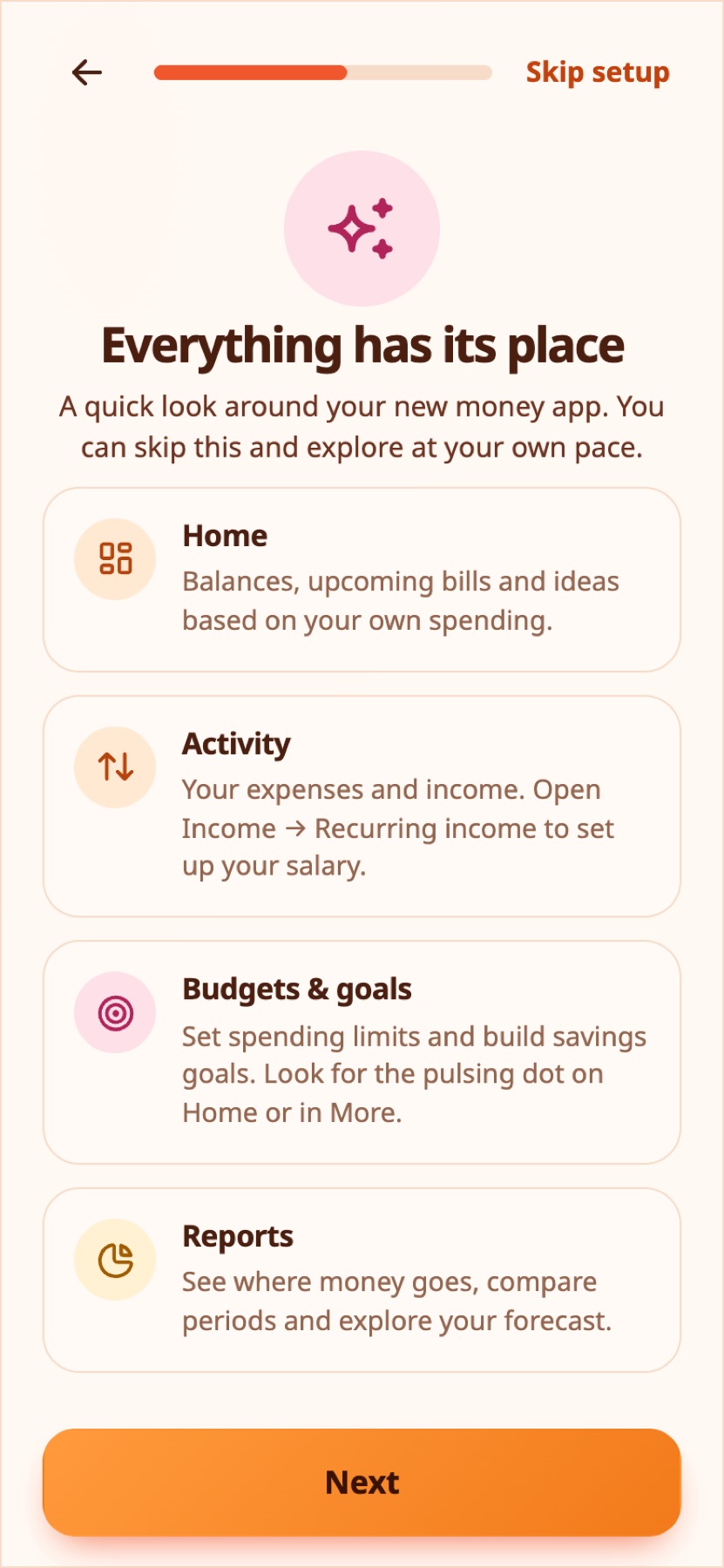
After choosing a look, an animated tour explains Home, Activity, Budgets & goals and Reports. On phones, the swipe guide shows how to reveal row actions: swiping never pays or deletes anything by itself. All optional setup steps can be skipped. Existing accounts that have completed setup return to their data after signing in. Blur, floating cards and transitions follow your animation setting and your device's reduced-motion preference.
Built-in wallet and category labels follow the selected language. Names you write yourself, including saved transaction names, stay as written.
Help is always one tap away#
Look for the pulsing ? at the top of a screen: it opens a short animated tutorial in a popup without taking you away from what you are doing. All tutorials are in More → Help & about → Tutorials, and Contact us is next to them. See Tutorials and help.
Still stuck? Check the FAQ, or ask on GitHub.