Tutorials and help
Expenity teaches itself. Every feature has a short animated tutorial that you can watch at any time, and a small help icon that opens the right one without taking you away from what you are doing.
The help icon#
On screens that have a tutorial you will see a round, pulsing ? at the top of the screen (and in the header of sheets such as the entry form). It rings like a bell every few seconds so it is easy to spot.
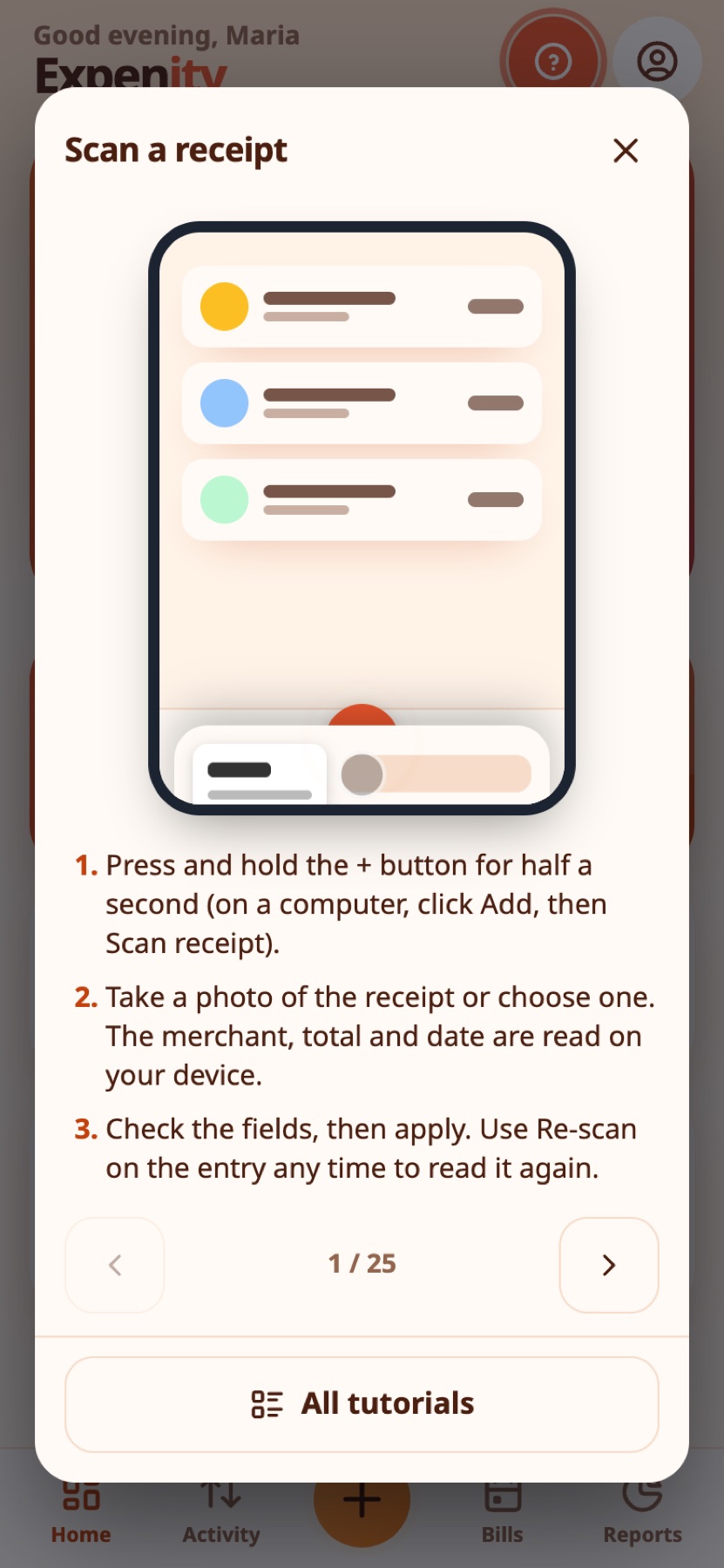
Tap it and the tutorial opens in a popup on top of your screen. Nothing closes and nothing is lost: if you were halfway through an expense, it is still there when you close the popup. At the bottom of the popup you can:
- open All tutorials and pick another one without leaving the popup, or step through them with the arrows;
- choose Never show this help icon again. That hides the icon on that screen only. Other screens keep theirs until you hide them too.
Real-life example
Stuck on filters, Maria taps the pulsing help icon and watches the short animation without leaving her screen.
Turn help icons on or off#
More → Help & about → Help icons has one switch for all help icons, one switch for each screen, and Show every help icon again to bring them all back. The same master switch is on the Tutorials page.
The tutorials page#
More → Help & about → Tutorials lists every tutorial with a small description. New ones carry a NEW badge. Open one to watch it loop, read the three steps under it, and use the arrows to go through them all in order.
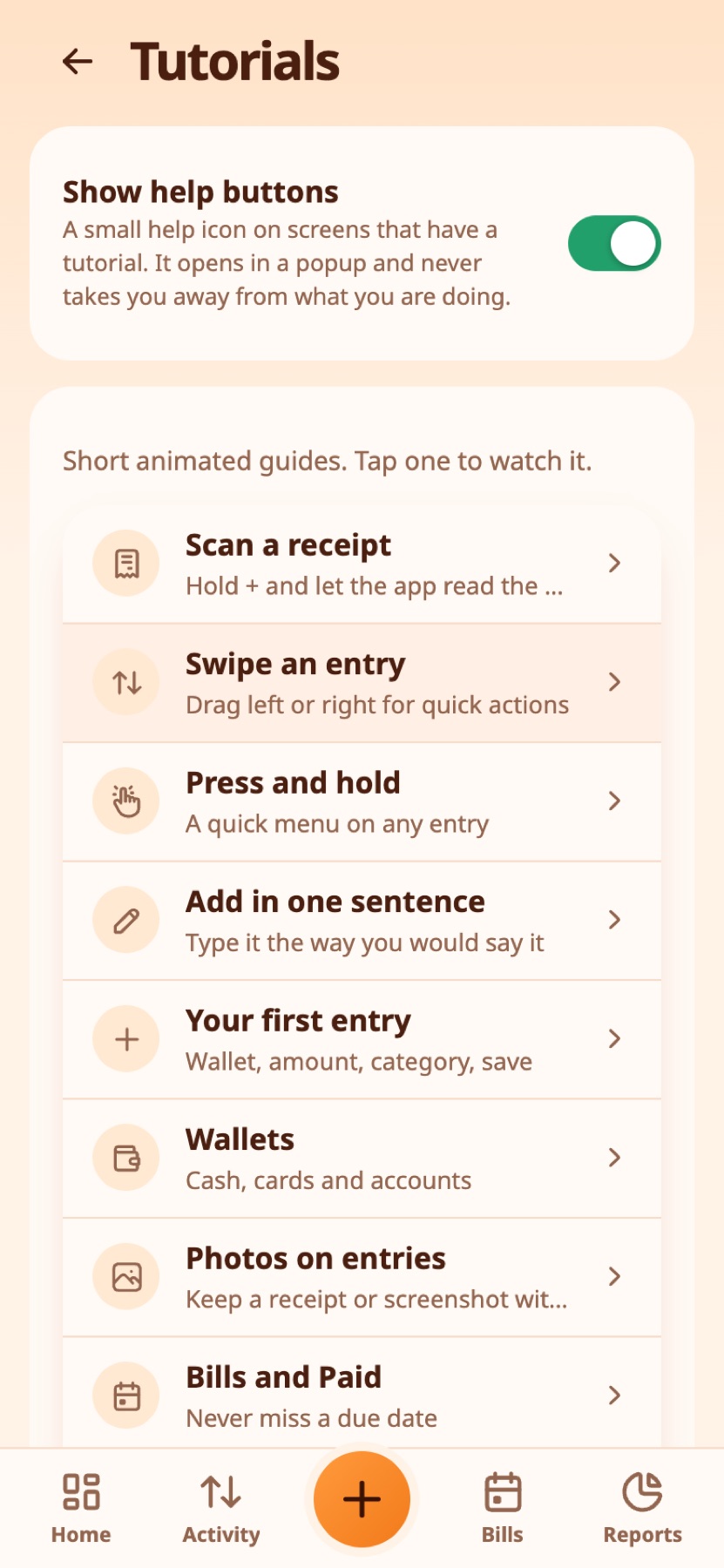
Tutorials include scanning receipts, swiping rows, press and hold, adding in one sentence, your first entry, wallets, bills, repeating income, budgets and goals, reports, notifications, themes and the pencil, features and plans, profile picture, editing Home, the duplicate guard, the daily number, search and filters, recently deleted, streaks, price-change alerts, photos on entries, sync, shared wallets, and backup and reset account.
The welcome tour#
The first-run setup includes animated steps for the things people ask about most: scanning a receipt, adding an entry in one sentence, a few handy extras, and the help icon itself.
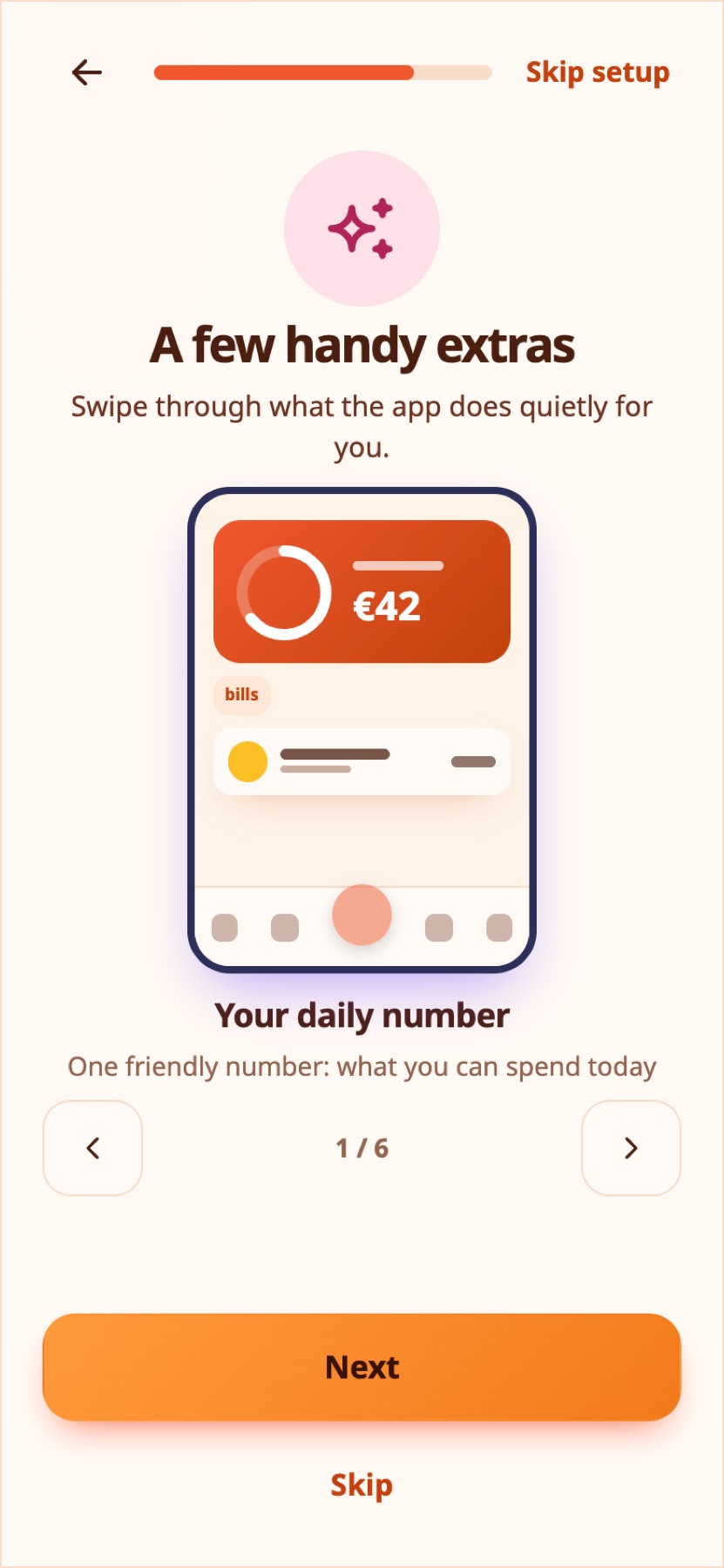
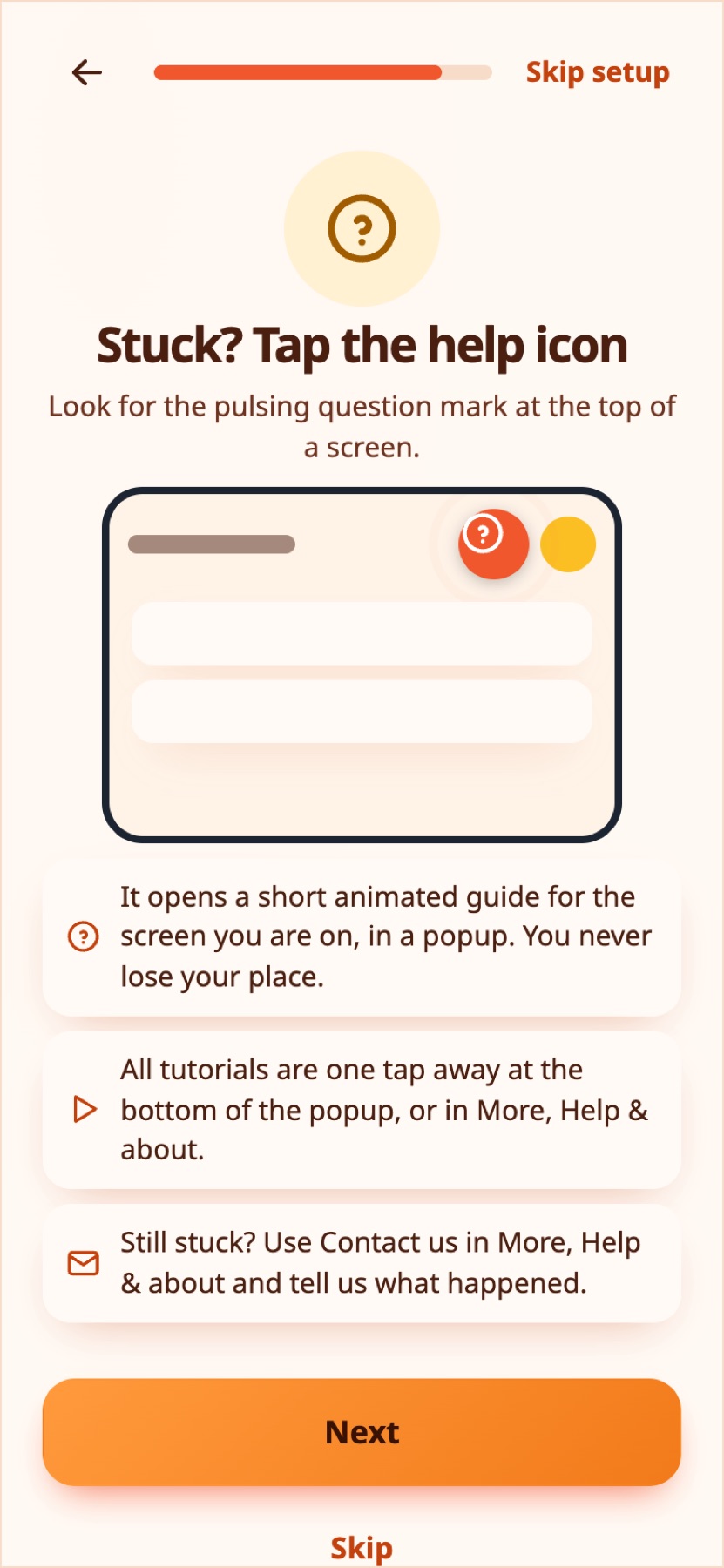
Dismiss the tour or replay it from the Tutorials page: Replay the welcome tour.
Right-click menu#
On a computer, right-click an entry or a bill to get a small menu with Edit, Duplicate and Delete (and Paid for a bill). Right-click on empty space to add an Expense, Income or Bill, or to open Search or Reports. Text fields keep the browser's own menu, and holding Shift while you right-click also shows it. Turn the menu off in More → Make it yours → Features.
What's new#
After an update, a small window shows what changed. Press Got it to close it, or View changes for the full list.
Still stuck?#
Use More → Help & about → Contact us. See Contact us.
For split category amounts, partial repayments and worked examples, see Split expenses and reimbursements.
Still stuck? Check the FAQ, or ask on GitHub.