Receipts, photos and your picture
Scan a receipt#
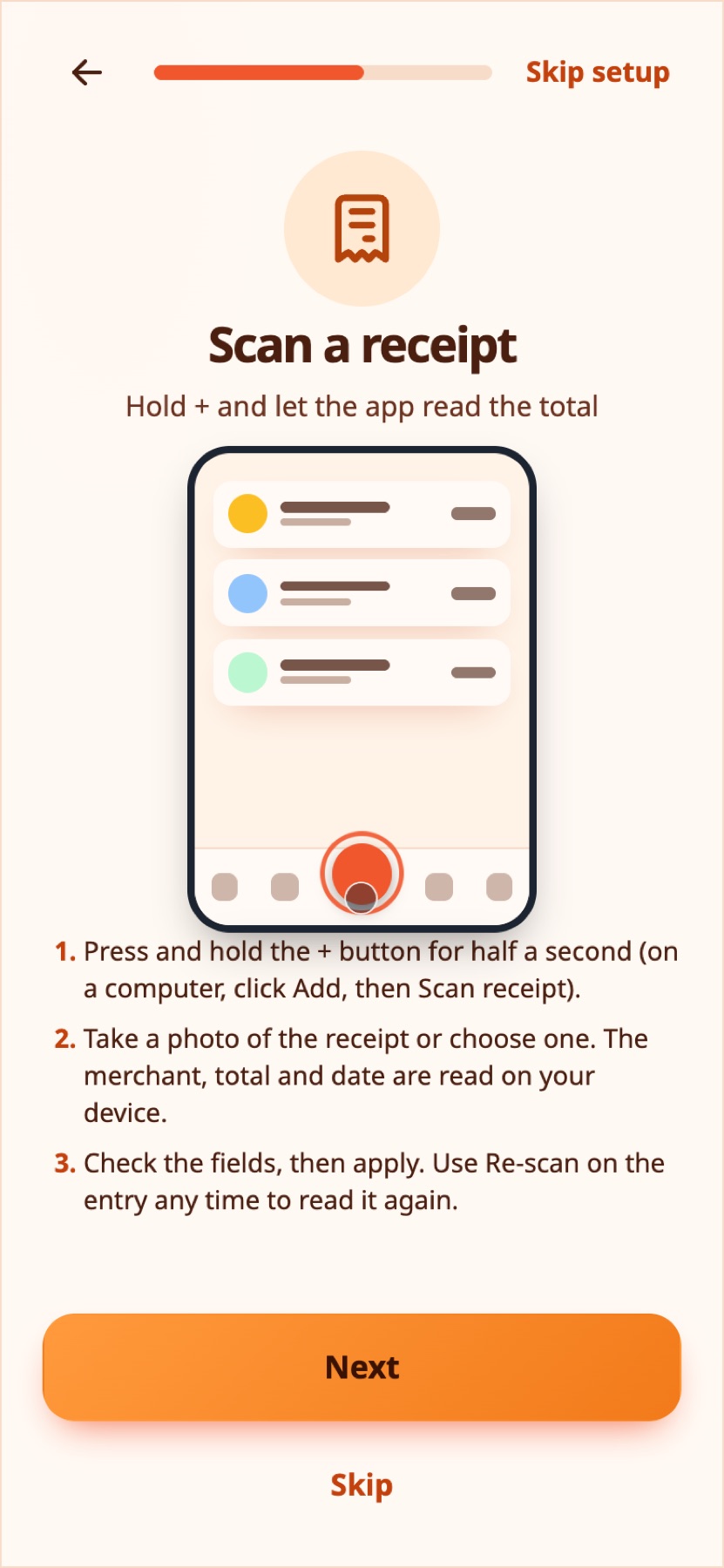
Photograph a receipt and Expenity reads the merchant, the total and the date on your device, in English and Greek. Nothing is uploaded for recognition.
- Hold the + button for half a second, take the photo, or choose one from your library. On a computer, open Add, then Scan receipt.
- Review the fields. You choose what to apply: the name, the amount, the currency, the date, and whether to keep the photo.
- Scanned entries show a small receipt icon. Open one and choose Re-scan receipt to read it again, for example with a better photo.
The scanner is part of Advanced, and More → Make it yours → Receipt scanning switches it on or off.
Real-life example
Giorgos scans a restaurant receipt. The merchant, the total and the date are read on his phone, and he can keep the photo with the entry.
Photos on entries#
Attach a small reference photo or screenshot to an expense, income, bill, wallet or goal: open it, then More → Attach photo. Photos are shrunk to about 1000 pixels and 60 KB before upload, and a green check confirms it. An entry can show both a receipt icon and a photo icon. Tap the photo icon to view it. Photos need an account and a connection, and you can delete them all from More → Data.
Real-life example
Anna photographs the warranty receipt of a new washing machine and attaches it to the payment, so it is there the day she needs it.
Your profile picture#
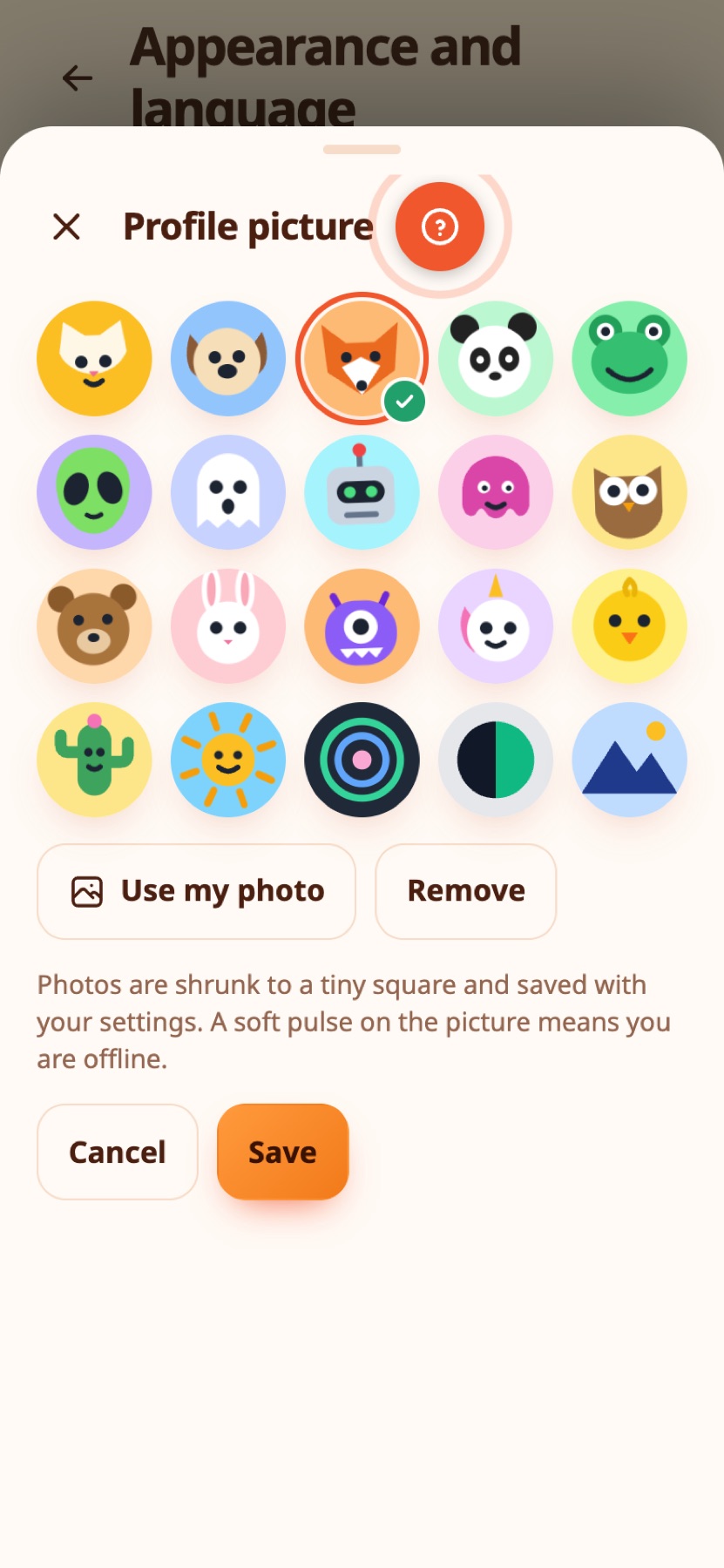
Choose More → Profile picture to pick one of 20 characters (funny, animated or minimal) or use your own photo. Your choice is only a preview until you press Save, and a green check marks the one you picked. A photo is cropped to a small round picture and saved with your settings. When you are offline, the picture gets a soft pulse so you can tell.
Still stuck? Check the FAQ, or ask on GitHub.