Install on your device
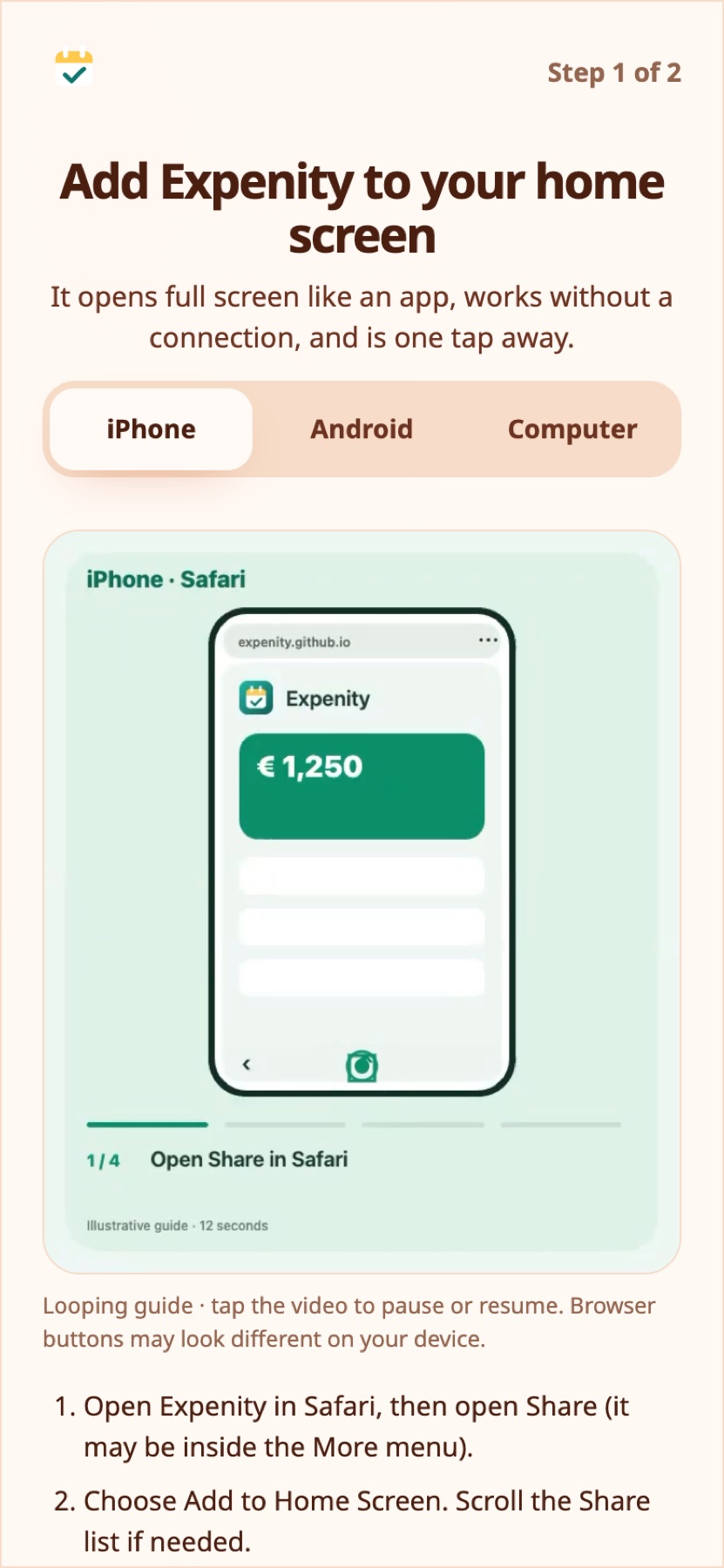
Expenity is a web app. You can use it in a browser tab, or add it to your home screen so it opens full screen with its own icon, like any other app. The first-run flow shows this with a short animation; these are the same steps.
Works on your devices#
Expenity runs in a current browser on iPhone, iPad, Android phones and tablets, Windows, Mac and Linux. There is no app store and nothing to download: you open it in the browser, and you can install it so it opens full screen and works offline.
| Device | Browser | How to install | Good to know |
|---|---|---|---|
| iPhone and iPad | Safari | Share, then Add to Home Screen | Notifications when the app is closed need the home-screen version |
| Android | Chrome | Install app | Receipt scanning uses the camera or a photo from your gallery |
| Windows, Mac, Linux | Chrome or Edge | The install icon in the address bar | Safari on a Mac can add it to the Dock. Firefox works in the browser but cannot install web apps on a computer |
Some features need something from the device: passkeys need a device that supports them (most phones and computers from the last few years), receipt scanning needs a camera or a photo, and installing needs a browser that supports it. If one of these is missing, Expenity still works in the browser and tells you what is not available. The layout adapts on its own: a bottom bar on a phone, a side rail on a tablet or computer.
You can try the real app in an iPhone, iPad or computer frame, and change the theme live, on the Expenity website.
iPhone and iPad#
- Open Expenity in Safari.
- Tap the Share button.
- Choose Add to Home Screen.
- Tap Add, then open Expenity from your home screen.
Real-life example
Eleni adds Expenity to her iPhone home screen and opens it like any other app, with no app store.
Android#
- Open Expenity in Chrome.
- Open the menu (⋮).
- Choose Install app (or Add to Home screen) and confirm.
If your browser offers it, the install step in the app has an Install now button that does this for you.
Computer#
In Chrome or Edge, click the install icon at the right end of the address bar, or open the menu and choose Install Expenity. In Safari on a Mac: File → Add to Dock.
Offline#
After the first visit the app files are stored on your device, so Expenity opens without a connection. Changes you make offline are saved on the device and sync when you are back online. If a new version is available, it updates the next time you open the app with a connection.
Real-life example
On a flight without internet, Petros adds his expenses as usual. They sync when he lands.
Several devices#
Sign in with the same account on each device. Your wallets, transactions, bills, budgets, goals and settings follow you. How the look is set (theme, animations, language) is remembered per device. See Account and sync.
Real-life example
Anna uses her phone on the go and her computer for monthly reports. It is the same data on both.
Still stuck? Check the FAQ, or ask on GitHub.