Shared wallets
A shared wallet lets family or friends see and add to the same wallet from their own devices, for a household budget, a trip or a shared account. Only the wallet you share is visible to others: your other wallets, budgets and goals stay private.
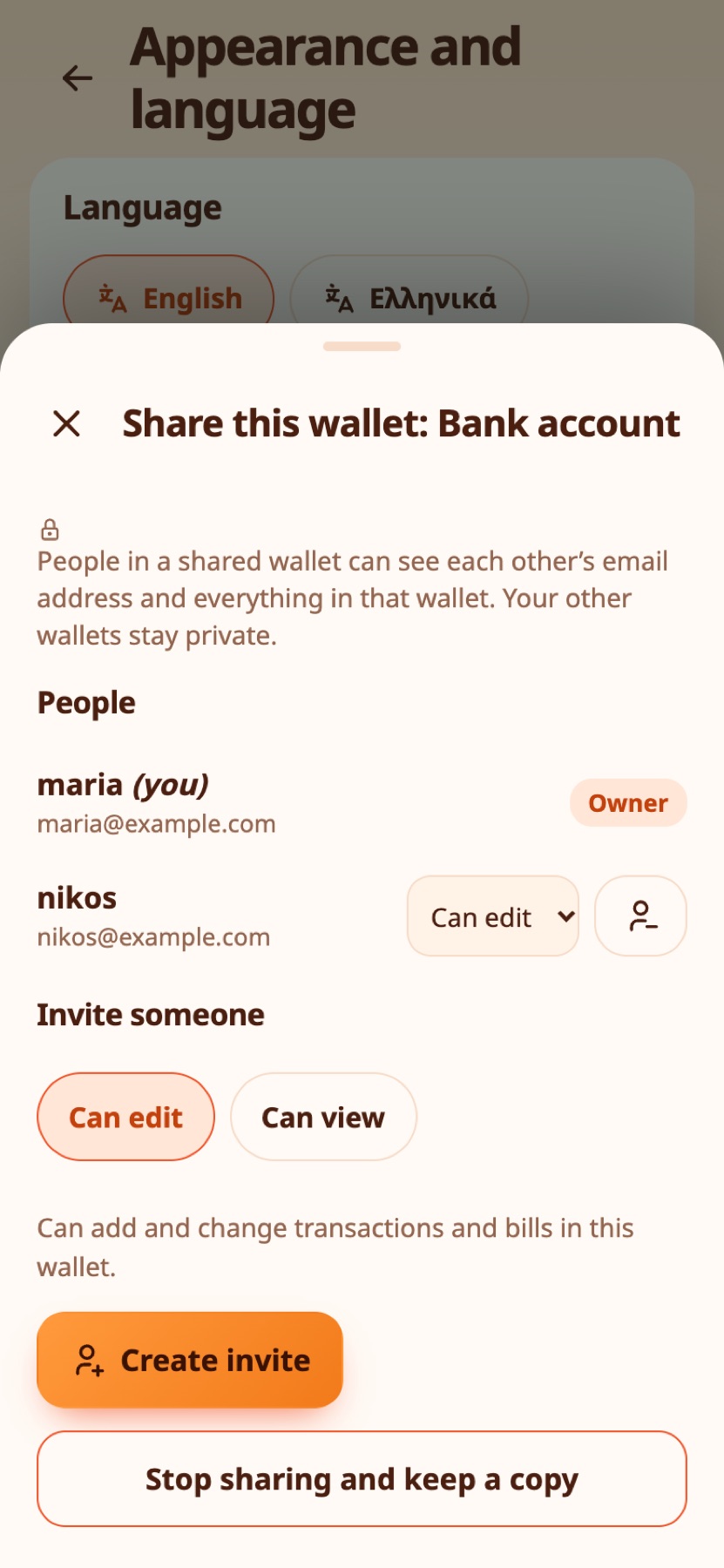
Share a wallet#
You need an account (not guest mode).
- Open More → Wallets and tap the wallet.
- Press Share this wallet, then Start sharing.
- Choose a role for the person you invite: Can edit or Can view.
- Press Create invite. You get a code and a link. Send either one to the person, in a message or in person.
An invite works once and expires after 7 days. You can see open invites and cancel them. You can share up to 5 wallets, with up to 12 people each.
Real-life example
Nikos and Eleni share a Household wallet. Both add the groceries and the bills, and both see the same balance.
Join a shared wallet#
Open the link you were sent, or go to More → Wallets → Join a shared wallet and type the code. You need an account, and Expenity asks you to sign in or create one first if you do not have one. The wallet and its history then appear on your device.
Real-life example
Eleni joins the Household wallet with the invite code Nikos sent her, and it appears on her phone straight away.
Roles#
| Role | Can do |
|---|---|
| Owner | Everything: invite people, change roles, remove people, stop sharing |
| Can edit | See everything in the wallet, add and change transactions and bills |
| Can view | See everything in the wallet, but not change it |
The server checks the role on every change, not only the app. Each transaction and bill shows who added it.
Real-life example
The grandparents get View only access to the family wallet so they can see the numbers, while the parents can edit.
What is shared#
The wallet, its transactions and its bills. Budgets, goals, recurring income and your settings are not shared. Transfers only work between two private wallets or between two wallets inside the same shared wallet.
Privacy#
People in a shared wallet can see each other's email address and everything in that wallet. Tell the people you invite what they will see.
Real-life example
Everything else in Nikos's account stays private. Eleni sees only the wallet they share.
Leave, remove, stop sharing#
- A member can Leave this wallet. It is removed from their device and the others keep it.
- The owner can Remove someone, who loses access and the data on their device.
- The owner can Stop sharing and keep a copy: everyone else loses access, and you keep the wallet and all its transactions as a private wallet.
You do not have to hunt for these buttons: More → Account and sync → Shared wallets lists every wallet you share, with Leave this wallet for the ones you joined and Stop sharing for the ones you own.
If you delete your account, wallets you own and share are deleted for everyone, and you leave the ones you joined. Reset account also deals with shared wallets for you: it shows what happens to each one, you confirm, you leave or stop sharing them, and the reset carries on.
Real-life example
After moving out, Maria leaves the shared wallet from More → Account and sync → Shared wallets. The others keep it and it is removed from her device.
Still stuck? Check the FAQ, or ask on GitHub.