Reports
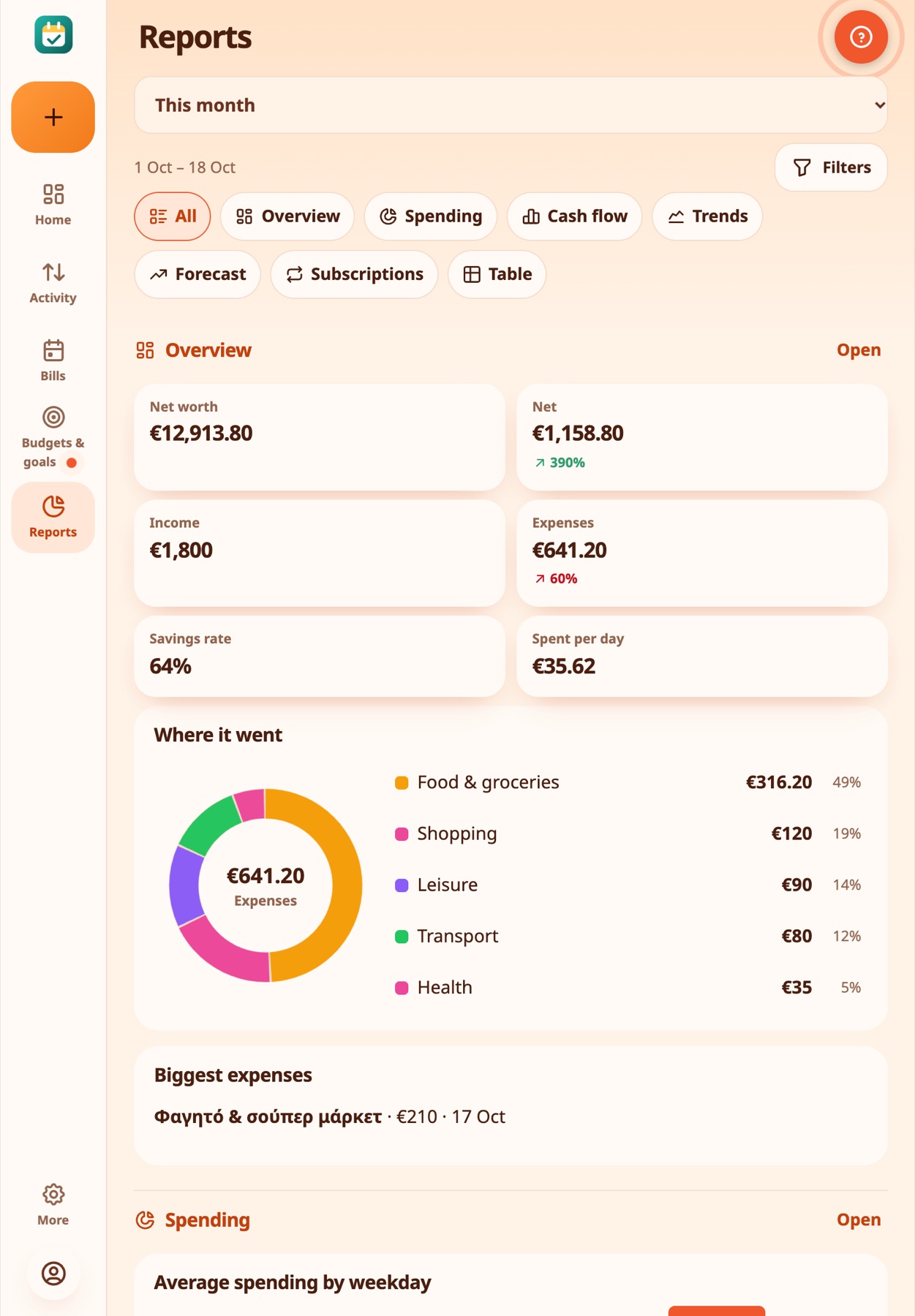
Reports turn your transactions into charts and tables. The All view shows every report one after the other, each with an Open link, so you can scroll through everything. The buttons under the filters (each with an icon) open one report on its own. Pick a period at the top (This month, Last month, 3 months, This year, 12 months, or a custom range), then a tab. Filters narrow everything to a wallet, a category, only expenses or only income, or a word in the description. Goal money is left out of spending.
Overview#
Net worth, net result, income, expenses, savings rate and spending per day, each with an arrow and a percentage compared with the previous period of the same length. Below, the top categories and your biggest expense.
Real-life example
At the end of the month Nikos opens Reports and sees income, expenses, his savings rate and what he spent per day, all on one screen.
Spending#
A donut chart by category. Tap a slice or a legend row to drill down into that category's transactions. Also: average spending by weekday, where the money goes (by description) and the biggest expenses.
Real-life example
Anna taps the biggest slice of the donut and sees the entries behind it: three restaurant bills explain most of it.
Cash flow#
Income and expenses month by month, cumulative cash flow, and your savings rate by month.
Trends#
Spending by month stacked by category (the top five and the rest), and how this month compares with last month.
Real-life example
Petros sees that his coffee spending has grown every month and decides to cut down.
Forecast#
The expected balance in 30, 60 and 90 days, drawn as a line. It uses your bills, your recurring income and a typical daily spend worked out from the last 60 days, and says so under the chart. It also shows the amount you can spend per day until the end of the month, the lowest point your balance reaches and the biggest payments coming up.
Real-life example
Before a big purchase, Elena checks the forecast, which includes her upcoming bills and expected income, and sees the lowest balance she should expect over the next months.
Subscriptions#
A table of your subscriptions with the monthly and yearly cost and the next charge, the total per year, and a note when a price went up.
Real-life example
Kostas lists his subscriptions and finds he pays €38 a month for services he barely uses. He cancels two of them.
Table#
Every transaction in the period, in a table you can sort by clicking a heading and group by category, wallet or month, with totals. CSV downloads it for a spreadsheet.
Every chart has Show as a table, so the numbers are always available as text.
On a tablet or computer the charts and tiles use the extra room.
For split category amounts, partial repayments and worked examples, see Split expenses and reimbursements.
Still stuck? Check the FAQ, or ask on GitHub.